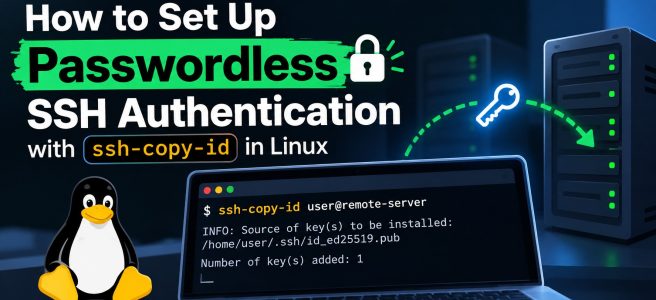
Connecting to Linux servers over SSH is part of everyday work for developers and system administrators. Entering an account password for every connection is inconvenient, especially when managing multiple servers. SSH public-key authentication provides a more secure and convenient alternative.
In this tutorial, you’ll generate an SSH key pair, install the public key on a Linux server with
ssh-copy-id
, test the connection, and troubleshoot common errors. You’ll also learn how to use an SSH agent, configure aliases, and safely harden your server.
Important: “Passwordless SSH” means you don’t need to enter the remote account password. A private-key passphrase is still recommended; an SSH agent can help you avoid entering it on every connection.
Prerequisites
- A local Linux, macOS, or other system with an OpenSSH client installed.
- A reachable Linux server running an SSH server.
- A remote user account and an existing working authentication method (often a password) to install the key.
- Permission to access the remote account and modify its
~/.ssh/authorized_keys
file.
The examples below use
john@192.168.1.100
. Replace the username and address with your own.
Why Use SSH Keys Instead of Passwords?
SSH key-based authentication uses a private key kept on your computer and a corresponding public key registered on the server. During login, SSH proves possession of the private key without sending it to the server.
Benefits include:
- Stronger authentication: Properly generated keys resist password guessing and credential-stuffing attacks.
- Convenience: Log in without repeatedly entering the remote account password.
- Automation: Support deployment workflows and scripted access with appropriately scoped credentials.
- Better access management: Use different keys for different machines, users, or purposes and revoke individual public keys when needed.
Keys are not automatically safe: protect your private key, use a passphrase for interactive access, and remove keys that are no longer authorized.
Step 1: Generate an SSH Key Pair
First, check whether you already have a suitable key:
ls -la ~/.ssh/*.pub
If you have an existing key you intend to reuse, you can skip key generation. Do not overwrite an existing private key accidentally.
For a new key, Ed25519 is a good default on modern OpenSSH systems:
ssh-keygen -t ed25519 -C "your_email@example.com"
The comment is an optional identifier, not a requirement to use an email address. When prompted, accept the default file path (
~/.ssh/id_ed25519
) if it is unused, or enter a distinctive path such as
~/.ssh/id_ed25519_work
. Choose a strong passphrase for the private key.
The command creates two files:
| File | Purpose |
|---|---|
~/.ssh/id_ed25519 |
Private key: keep secret; never upload or share it. |
~/.ssh/id_ed25519.pub |
Public key: safe to install on servers you control. |
For older systems that cannot use Ed25519, RSA may be an alternative:
ssh-keygen -t rsa -b 4096 -C "your_email@example.com"
RSA compatibility depends on the algorithms supported and enabled by both SSH endpoints. Prefer upgrading outdated SSH implementations instead of re-enabling obsolete signature algorithms.
Step 2: Install Your Public Key with ssh-copy-id
Specify the public key explicitly so the intended identity is installed:
ssh-copy-id -i ~/.ssh/id_ed25519.pub john@192.168.1.100
On the first connection, SSH may ask you to confirm the server’s host-key fingerprint. Verify that fingerprint through a trusted channel before accepting it. You will then usually enter the remote account password to authorize installing your key.
ssh-copy-id
adds the public key to the remote user’s
~/.ssh/authorized_keys
file, typically creating the required SSH directory and adjusting permissions as needed. It does not copy your private key to the server.
If your key has a custom filename, substitute its
.pub
path. For example:
ssh-copy-id -i ~/.ssh/id_ed25519_work.pub john@192.168.1.100
Connect on a Nonstandard SSH Port
ssh-copy-id
uses
-p
for the SSH port:
ssh-copy-id -i ~/.ssh/id_ed25519.pub -p 2222 john@192.168.1.100
Step 3: Test SSH Key Authentication
Connect with your chosen private key:
ssh -i ~/.ssh/id_ed25519 john@192.168.1.100
To confirm that public-key authentication works without falling back to a remote password, run:
ssh -o PreferredAuthentications=publickey -o PasswordAuthentication=no -i ~/.ssh/id_ed25519 john@192.168.1.100
A successful login demonstrates that the server accepts the key. You might still be asked for the private-key passphrase; that is different from the remote account password.
Step 4: Use ssh-agent to Avoid Repeated Passphrase Prompts
An SSH agent keeps decrypted key material available for authentication during its lifetime, so you can protect your private key with a passphrase without typing it for every connection.
On a typical Linux shell, if no agent is already available:
eval "$(ssh-agent -s)"
ssh-add ~/.ssh/id_ed25519
Enter your key passphrase when requested. To see which identities are loaded:
ssh-add -l
Desktop environments and other operating systems may already manage an SSH agent. Avoid launching unnecessary agents in every shell session. For an added safeguard, consider a limited key lifetime, for example
ssh-add -t 1h ~/.ssh/id_ed25519
.
Step 5: Simplify Connections with ~/.ssh/config
Instead of remembering the username, address, and key path, create or edit
~/.ssh/config
on your local machine:
Host production-server
HostName 192.168.1.100
User john
Port 22
IdentityFile ~/.ssh/id_ed25519
IdentitiesOnly yes
Then connect with:
ssh production-server
IdentitiesOnly yes
is particularly useful if you have several SSH keys and the server limits authentication attempts. Keep the configuration file private (for example,
chmod 600 ~/.ssh/config
).
How to Install ssh-copy-id
The utility is often included with OpenSSH client packages, but minimal installations may omit it.
Debian / Ubuntu:
sudo apt update
sudo apt install openssh-client
RHEL / Rocky Linux / AlmaLinux / recent Fedora:
sudo dnf install openssh-clients
Package availability and names may vary by distribution and release. Verify the command:
command -v ssh-copy-id
Manual Alternative When ssh-copy-id Is Unavailable
If the utility is missing, you can append the public key manually over an existing SSH connection:
cat ~/.ssh/id_ed25519.pub | ssh john@192.168.1.100 \
  'umask 077; mkdir -p ~/.ssh && cat >> ~/.ssh/authorized_keys && chmod 700 ~/.ssh && chmod 600 ~/.ssh/authorized_keys'
This example assumes the remote account can already authenticate. It may append a duplicate key if repeated. For unusual account setups or restricted shells, an administrator may need to install the key through another authorized method.
Troubleshooting Common SSH Key Problems
Permission denied (publickey)
Use verbose client logging:
ssh -vvv -i ~/.ssh/id_ed25519 john@192.168.1.100
Look for messages about the key being offered and whether the server accepts it. Common causes include using the wrong remote username, choosing the wrong private key, missing
authorized_keys
entries, restrictive permissions, or server policy that disables public-key authentication.
Check Remote Permissions and Ownership
Run these commands as the target remote user (not blindly as root):
chmod 700 ~/.ssh
chmod 600 ~/.ssh/authorized_keys
ls -ld ~ ~/.ssh ~/.ssh/authorized_keys
The home directory and SSH files must not be writable by unauthorized users. If ownership is wrong, ask an administrator to correct it for the specific account; avoid recursively changing ownership of an entire SSH directory without inspecting it.
Inspect the Server Configuration
On the server, inspect
/etc/ssh/sshd_config
and any included configuration files. A typical setup permits:
PubkeyAuthentication yes
AuthorizedKeysFile .ssh/authorized_keys
The effective configuration can differ because of
Include
and
Match
directives. Where supported, inspect the relevant settings with
sshd -T
(and connection-specific
-C
parameters when necessary).
Before changing SSH server settings, preserve an existing working session and validate the configuration:
sudo sshd -t
If you changed the configuration and validation succeeds, reload the correct service for your distribution (often
ssh
on Debian/Ubuntu or
sshd
on RHEL-derived systems). For example:
sudo systemctl reload sshd
If your system uses a service named
ssh
, use
sudo systemctl reload ssh
instead. Reloading is generally less disruptive than restarting, but always confirm that you can establish a new session before closing the existing one.
Too many authentication failures
Your SSH agent may be presenting too many keys. Specify the intended identity and limit attempts to that key:
ssh -o IdentitiesOnly=yes -i ~/.ssh/id_ed25519 john@192.168.1.100
Host key verification failed
A changed host key may indicate a legitimate server rebuild or a security problem. Verify the new fingerprint independently with your server administrator or hosting provider before updating
known_hosts
. Do not disable strict host-key checking just to suppress the warning.
Optional: Disable Password Authentication After Verification
For a server you administer, disabling password-based SSH login can reduce exposure to password guessing. Do this only after confirming that key authentication works for every account and access path you need, including emergency administration.
Review your effective SSH configuration, any
Match
blocks, and your provider’s recovery-console options. Depending on your policy, you may need to configure both:
PasswordAuthentication no
KbdInteractiveAuthentication no
These directives control different authentication methods. Their effects can also depend on other settings such as
AuthenticationMethods
and PAM integration. Validate with
sudo sshd -t
, reload the correct SSH service, and test a new login session before ending the current one. Do not disable password authentication on systems you do not administer or without an approved recovery plan.
Frequently Asked Questions
Is passwordless SSH less secure?
Not inherently. SSH keys can be stronger than reusable account passwords, especially with a passphrase and careful private-key handling. A stolen unencrypted private key, however, can expose every account that trusts it.
Does ssh-copy-id copy the private key?
No. It installs the public key on the remote account. Your private key should remain on your trusted local device.
Can I use the same SSH key on multiple servers?
Yes, but separate keys can reduce the impact of compromise and simplify revocation. Use distinct keys for sensitive environments or automation where practical.
What if the server does not allow password login?
ssh-copy-id
still needs an existing authorized way to connect. Use an already trusted SSH identity, a hosting-provider console, or another administrator-approved provisioning method.
Does ssh-copy-id work with a custom SSH port?
Yes. Supply the port using
-p
, such as
ssh-copy-id -p 2222 -i ~/.ssh/id_ed25519.pub user@host
.
Conclusion
Setting up SSH key authentication is straightforward: generate a key pair, install the public key using
ssh-copy-id
, and verify that a new SSH connection succeeds without a remote account password. For a more maintainable setup, protect the private key with a passphrase, use
ssh-agent
, and define server aliases in
~/.ssh/config
.
When hardening a production server, verify access and recovery options before disabling password authentication. This small precaution can prevent an avoidable lockout.
Further Reading
- OpenSSH ssh-copy-id manual (availability of this manual varies by OpenSSH distribution)
- OpenSSH ssh-keygen manual
- OpenSSH ssh manual
- OpenSSH ssh_config manual
- OpenSSH sshd_config manual

